DaisyDisk: The Only Disk Space Manager Worth Using on Mac
Every few months, your Mac complains: “Your disk is almost full.” You know what’s coming. Twenty minutes of digging through folders, opening Finder windows, sorting by size, trying to figure out what’s eating all your space.
Unless you have DaisyDisk. Then it takes 30 seconds.
What It Does
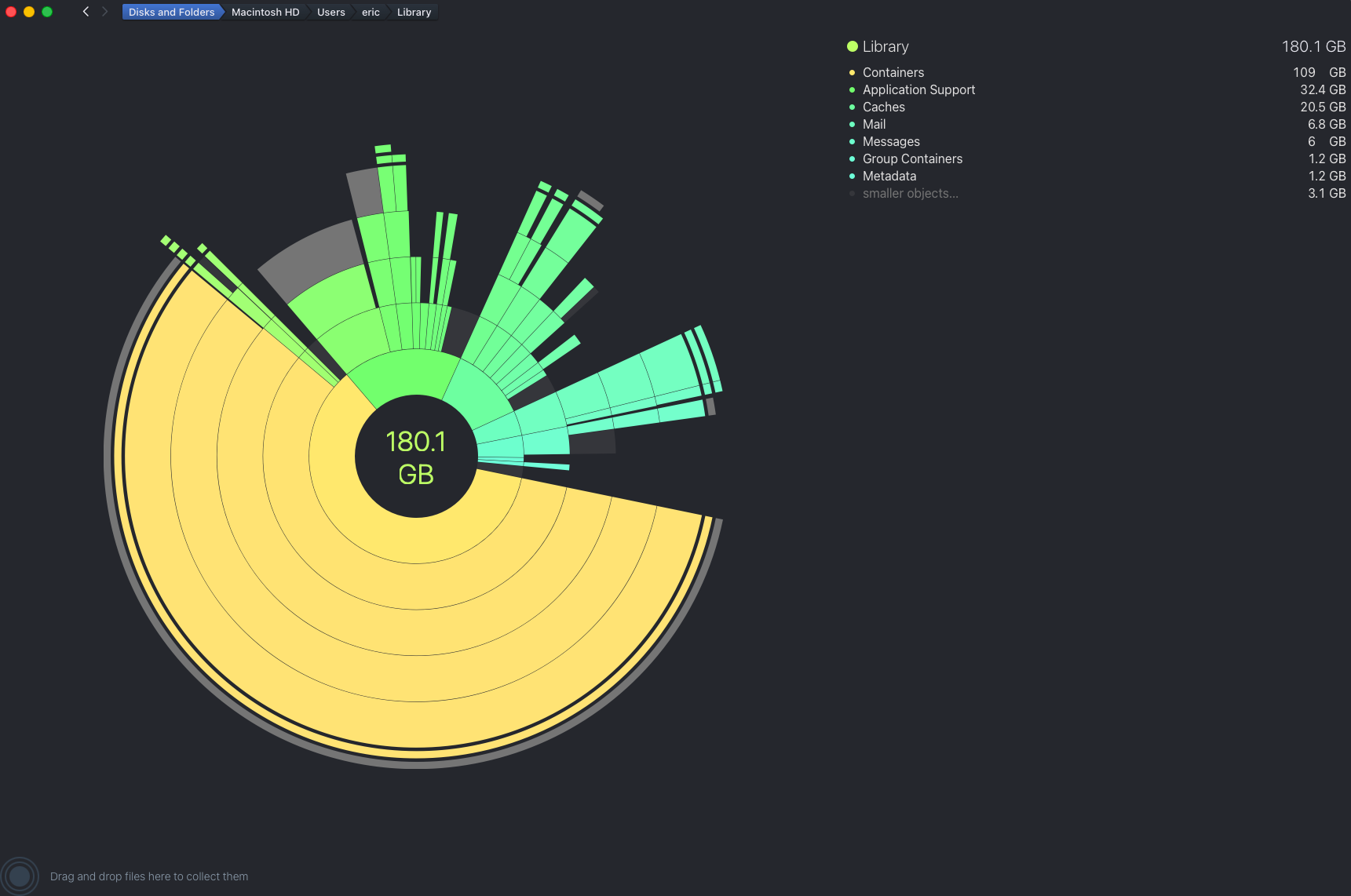
DaisyDisk scans your entire drive and shows you exactly what’s using space. Not in a boring spreadsheet. Not in nested folder lists. In a gorgeous interactive sunburst chart that makes sense instantly.
The outer ring shows your top-level folders. Click one, and it zooms in to show what’s inside. Click again. Keep drilling down until you find the 50GB folder of footage from a project you finished two years ago.
Right-click. Delete. Done.
Why It’s Better Than Everything Else
It’s Actually Fast
macOS has a built-in storage manager. It’s slow. Painfully slow. Click “Manage Storage” and watch the spinner for five minutes while it calculates.
DaisyDisk scans a 1TB drive in under 30 seconds. On an M-series Mac with an SSD, it feels instant.
The Interface Isn’t Garbage
Most disk utilities look like they were designed in 1997. Spreadsheets with file paths and byte counts. You need to sort by size, expand folders, remember what you’re looking at.
DaisyDisk’s sunburst visualization is instantly readable:
- Size = visual area: Big folders look big. Small folders look small.
- Color coding: Each top-level folder gets a color. Easy to track as you drill down.
- Smooth animations: Zooming in and out feels like using a map app, not a file manager.
It’s the only disk utility I’ve ever used where the interface makes the task easier instead of harder.
It Finds the Weird Stuff
You know what’s eating your disk space? It’s never the obvious stuff.
It’s:
- Xcode derived data: 30GB of build artifacts you’ll never need again
- Docker containers: Old images sitting there since 2023
- iOS backups: Three copies of your iPhone from different iOS versions
- Time Machine local snapshots: Supposedly temporary. Actually 100GB.
- Node modules: Every project has its own copy of the entire npm ecosystem
- Homebrew cache: Downloaded packages that were installed once and never cleaned
DaisyDisk shows you all of it. One scan. No guessing.
How I Use It
Monthly Cleanup
First Sunday of every month, I run DaisyDisk. Takes five minutes:
- Scan the drive
- Check the biggest folders
- Delete anything I don’t need
- Empty trash
I’ve found:
- Old VMs: 60GB of virtual machines I haven’t booted in a year
- Video renders: Final Cut exports I already uploaded
- Git repos: Cloned for a single PR, never deleted
- Downloads folder: 20GB of installers and DMGs I forgot about
Before Big Updates
macOS updates need 15-20GB of free space. If you’re close to full, the update fails halfway through. Awkward.
Before any major update, I run DaisyDisk and clear 30GB. No stress. No failed installs.
Post-Project Cleanup
After finishing a video project or big dev task:
- Scan the project folder
- See what’s actually taking space (spoiler: it’s always footage or build artifacts)
- Archive what I need, delete the rest
Video projects especially. A single 4K project can be 200GB. After export, I keep the final render and source footage. Everything else goes.
The One Downside
It costs $9.99. Not a subscription. One-time purchase. But still, it’s not free.
Is it worth ten bucks to save hours of manually digging through folders? Yes.
Also, there’s a free trial. Scan your drive. See what it finds. If it saves you even 20 minutes, it’s already paid for itself.
Alternatives (And Why They’re Worse)
macOS Storage Management: Free. Slow. Limited. Can’t drill down into folders easily. Suggests you “optimize storage” by uploading everything to iCloud. No thanks.
GrandPerspective: Free and open source. Shows a treemap instead of sunburst. Works, but the interface feels clunky. No file previews. Slower scanning.
OmniDiskSweeper: Free. Text-based list view. Fast scanning, but zero visual intuition. You’re back to sorting spreadsheets.
Finder’s “Arrange by Size”: Hilariously bad. Only works per-folder. Want to find the biggest file on your entire drive? Good luck clicking through every subdirectory.
None of them feel as polished or fast as DaisyDisk.
Who Should Use It
You should use DaisyDisk if you:
- Run out of disk space regularly: Just buy it. It’ll save you hours.
- Work with large files: Video, audio, design, photography, development.
- Have a smaller SSD: 256GB or 512GB fills up fast. You need to be ruthless about cleanup.
- Like tools that don’t suck: If bad UX annoys you, DaisyDisk will feel like a breath of fresh air.
You don’t need it if you:
- Have 2TB+ of storage and never come close to filling it
- Only use your Mac for web browsing and documents
- Enjoy manually hunting through folders (weird, but okay)
Tips for Using DaisyDisk
1. Scan as Administrator
Regular scans skip protected system folders. Run “Scan as Administrator” to see everything, including hidden system files and caches.
2. Use the Collector
Don’t delete files immediately. Drag them to the “Collector” (a temporary holding area). Once you’ve gathered everything, review the list, then delete in one batch.
Prevents “oh crap, I needed that” moments.
3. Check Unsupported Files
DaisyDisk can’t delete system-protected files directly. But it can show you they exist. For things like Time Machine snapshots, it’ll tell you the terminal command to delete them.
4. Watch the Excluded Folders
By default, DaisyDisk excludes certain system folders. If your scan doesn’t show what you expect, check Settings > Excluded Items.
5. Rescan After Cleanup
Emptying the Trash doesn’t always free up space immediately (thanks, APFS snapshots). Rescan to confirm the space is actually gone.
The Verdict
DaisyDisk is one of those rare utilities that’s so good at its job, you forget there was ever a worse way to do it.
It’s fast. It’s beautiful. It makes a boring, frustrating task feel almost fun. And it’s saved me from “disk full” errors more times than I can count.
For ten bucks, it’s a no-brainer. Download the trial, scan your drive, and prepare to be horrified by how much space you’re wasting.
Then feel smug as you delete it all in 30 seconds.